Get UCC file from BSE Star MF portal by following these steps
- Login to BSE portal
- Go to Admin section
- Here click on Admin reports
- Then click on Client Master report new
- Choose date format as Created Date and Report Type Client master
- Enter a date that is before the date when you started working on BSE
- Click on Export to text
After downloading this file log into InvestWell Mint, go to Invest Online menu and then Profile list. Here, click on the upload UCC list icon on the top right corner and choose the UCC list file.

Map Rejected UCCs
A pop up screen will show the count of UCCs that were imported and not imported respectively. Choose to Map the rejected UCCs button.

The next screen consists of 2 tables. The first one shows a list of all the UCCs that have not been imported into the system. The bottom table shows a list of all the folios that do not have a UCC assigned to them.

Search on the top table and then search in the bottom table and match the UCC to all the relevant folios. Click on Map & import button to execute the action.

Mandate File Download and Upload Process
Step 1: Download the mandate file from BSE
Login to the BSE Portal → Systematic Investment → Mandate → Mandate Search → Select the mandate → enter a date that is before the date you started working on BSE and then click on export to text.
Step 2: Upload the mandate file in Mint
Login to Mint → Invest Online BSE → Mandate List → Upload the text file.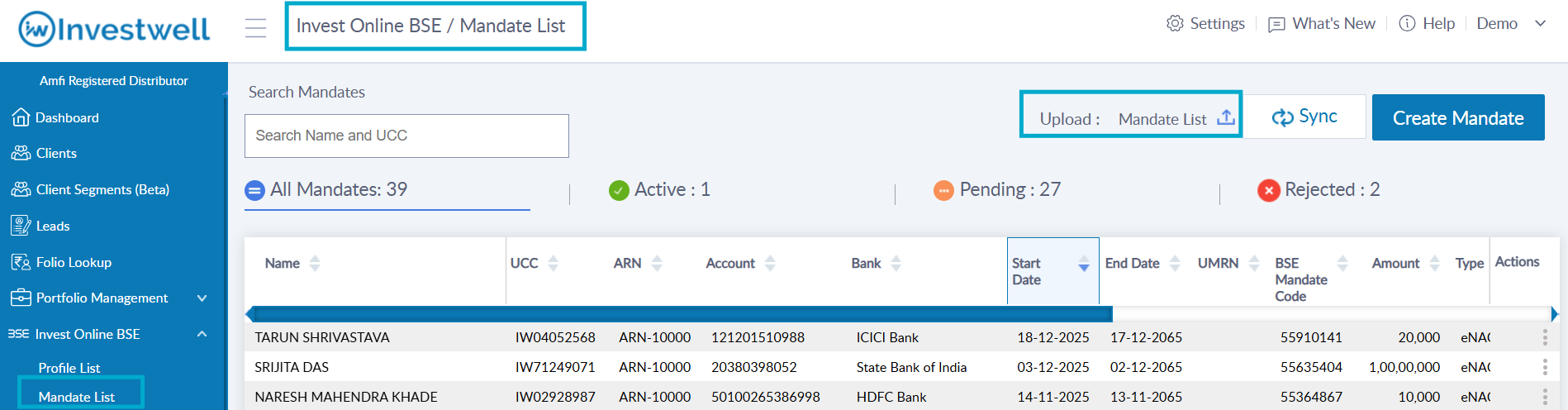
Was this article helpful?
That’s Great!
Thank you for your feedback
Sorry! We couldn't be helpful
Thank you for your feedback
Feedback sent
We appreciate your effort and will try to fix the article