BSE 2.0 integration is completed in two stages, on two different platforms, and both stages are required. First, you'll exchange and register public keys on the BSE StAR MF 2.0 portal. Then you'll enter your BSE-issued credentials on your Mint (InvestWell) portal to complete the connection. This guide walks through both stages in order.
Step 1: Download Public Keys from Mint
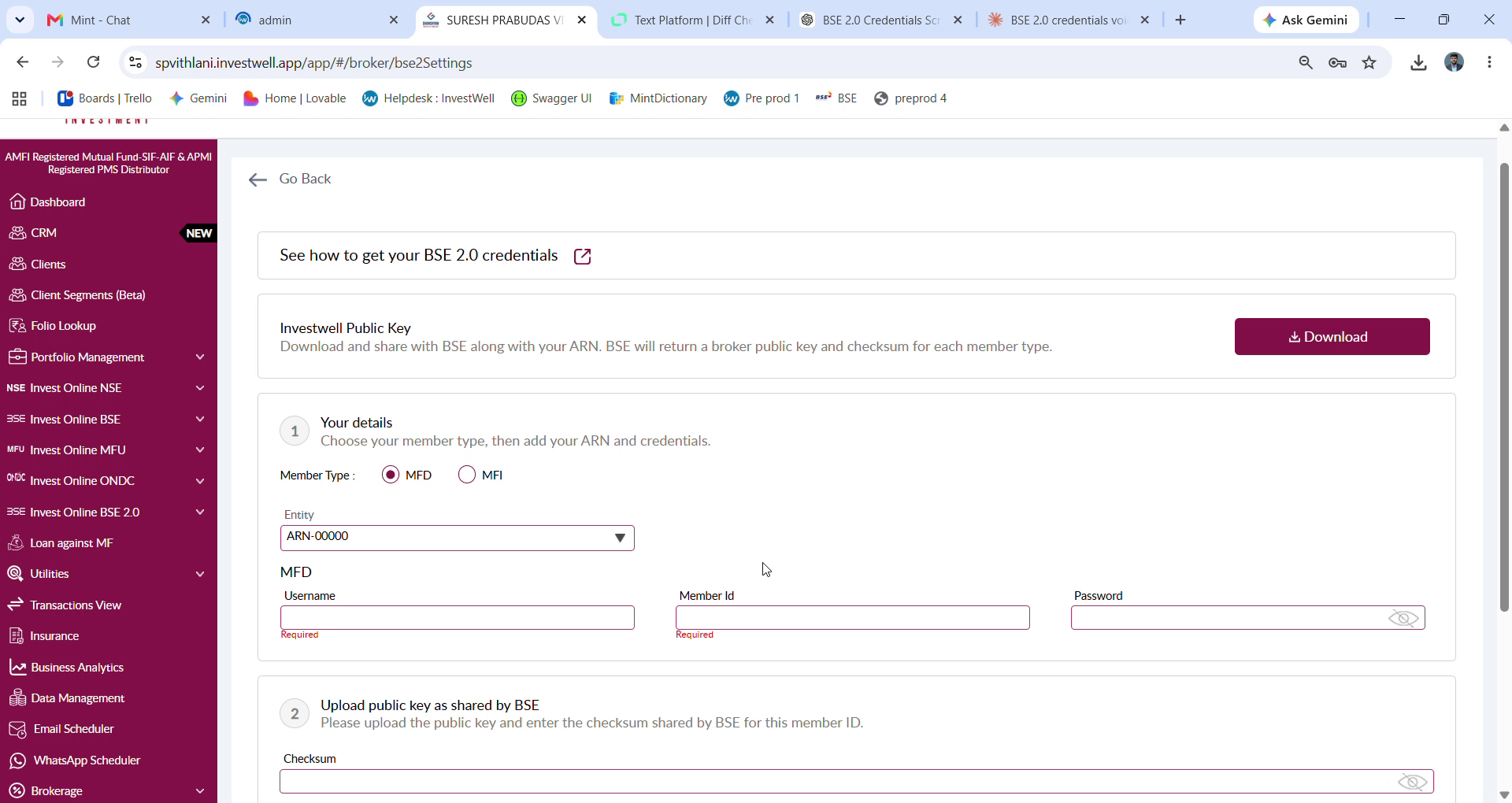
Open your Mint portal and go to Settings > BSE 2.0 Credentials. Under "Add Credentials," click Download to get your Investwell Public Key. Open the downloaded file and copy its contents — you'll need this to share with BSE.
Step 2: Sign in to BSE StAR MF 2.0
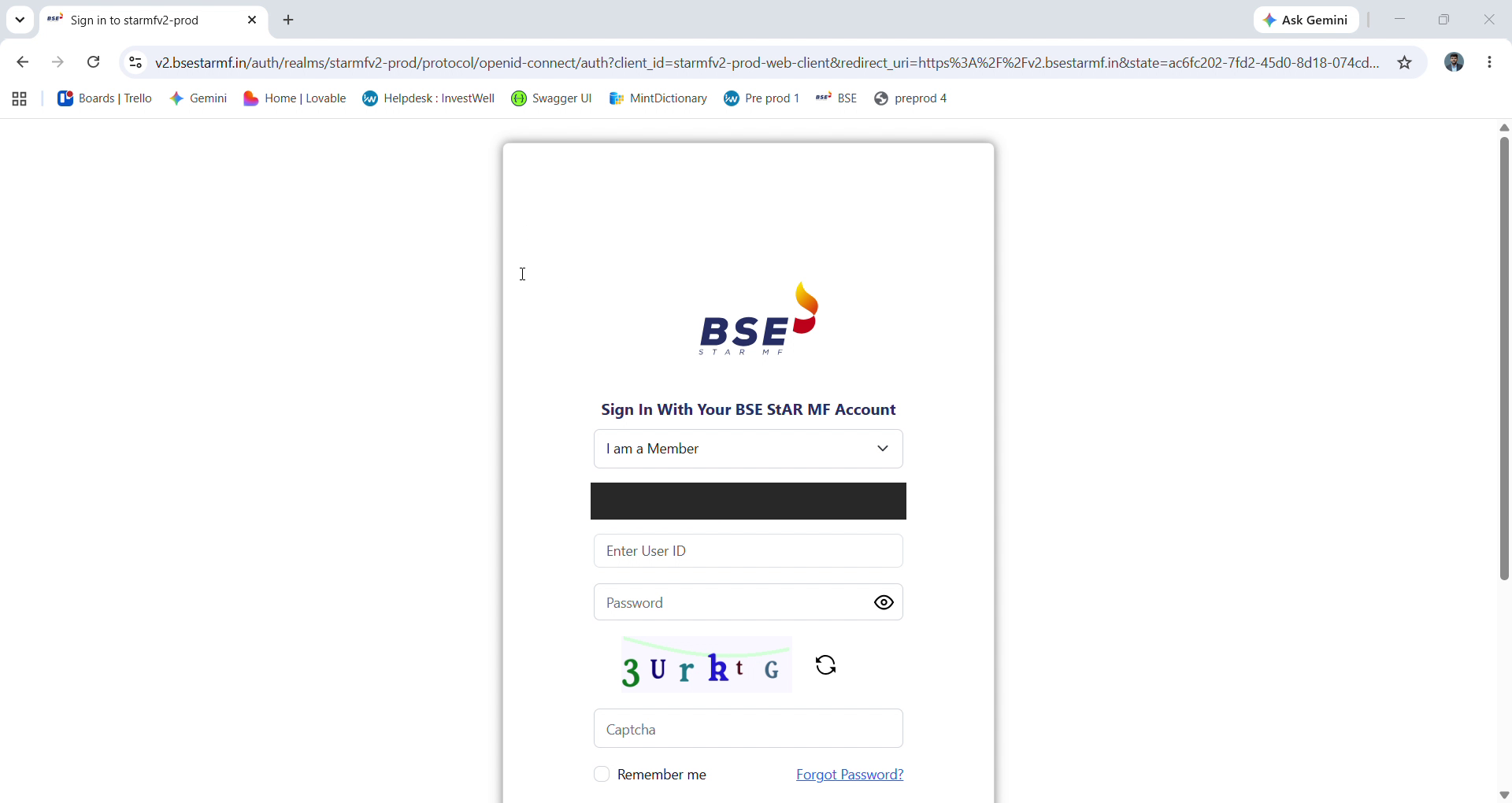
Open the BSE StAR MF 2.0 sign-in page (https://v2.bsestarmf.in/). Select “I am a Member,” then enter your Member Code, User ID, and Password
Step 3: Verify with a one-time password
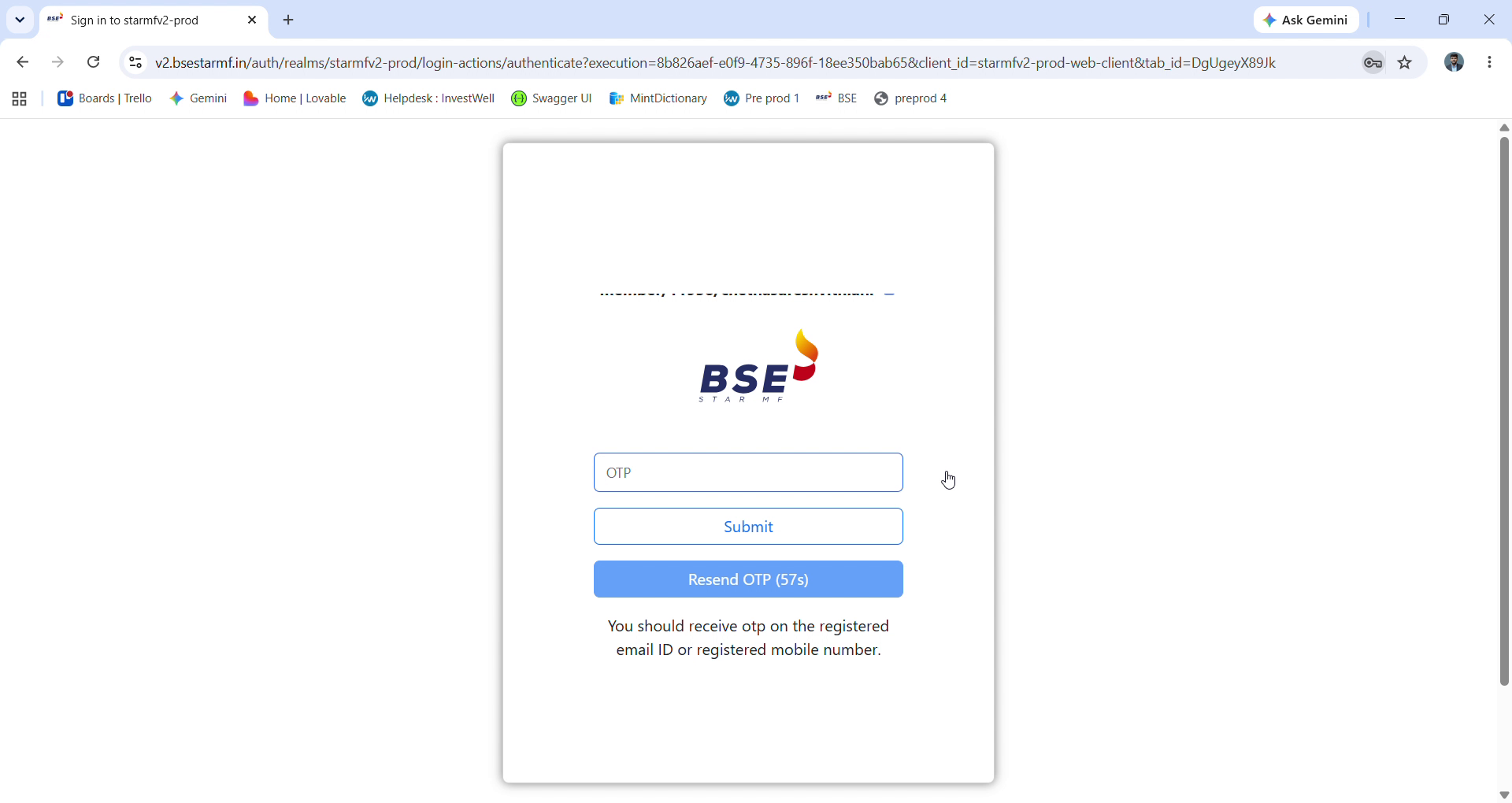
After signing in, BSE will send a one-time password (OTP) to your registered email address or mobile number. Enter the OTP and click Submit to continue. If it doesn't arrive, use “Resend OTP” once the timer runs out.
Step 4: Go to Member Integration
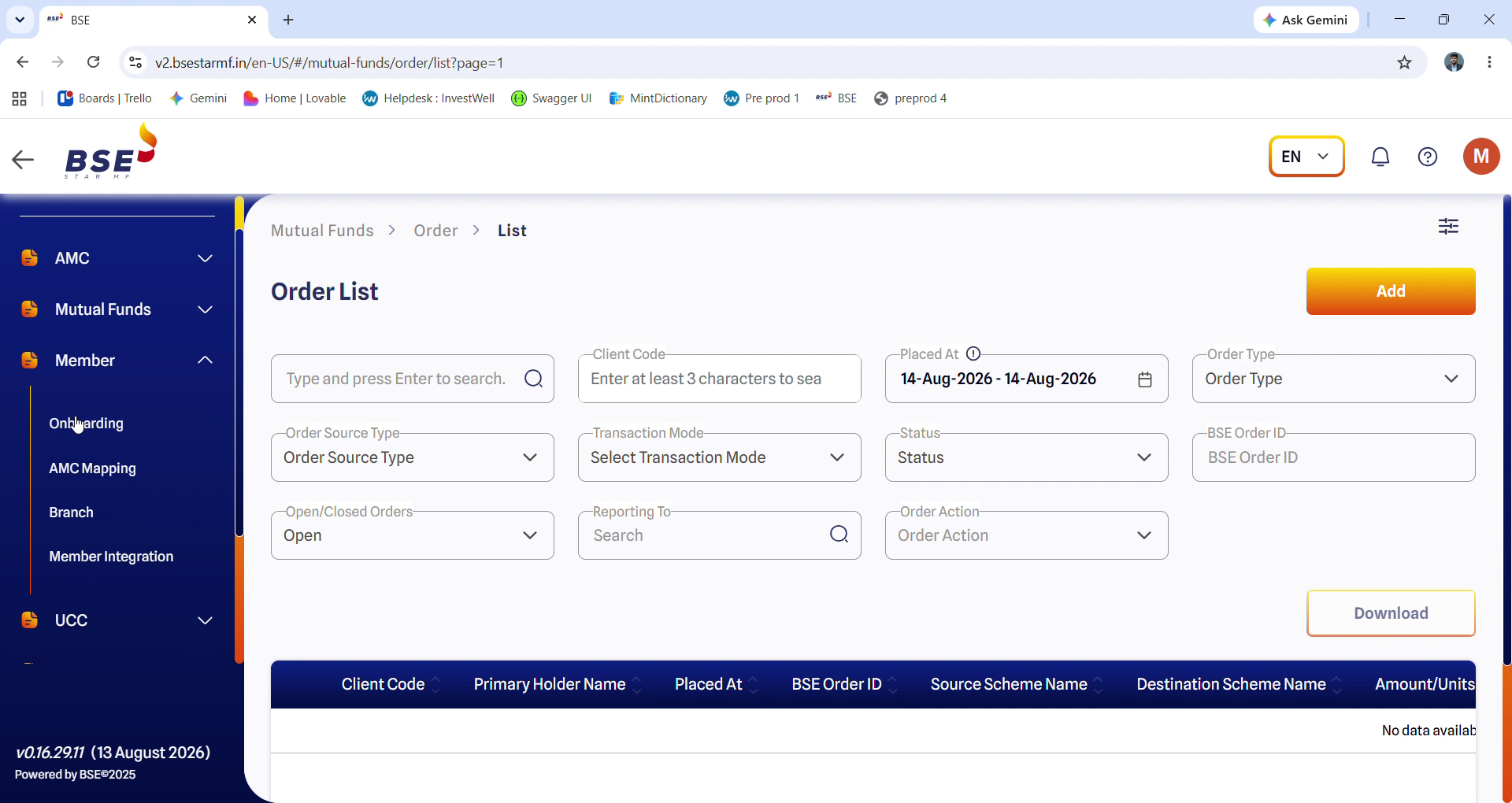
Once you're signed in, expand Member in the left-hand menu and select Member Integration.
Step 5: Upload your Public Key
The Member Integration page lists any credentials already on file. Click Upload to add a new one. In the dialog that appears, paste your Investwell Public Key into the Key field, then click Submit.
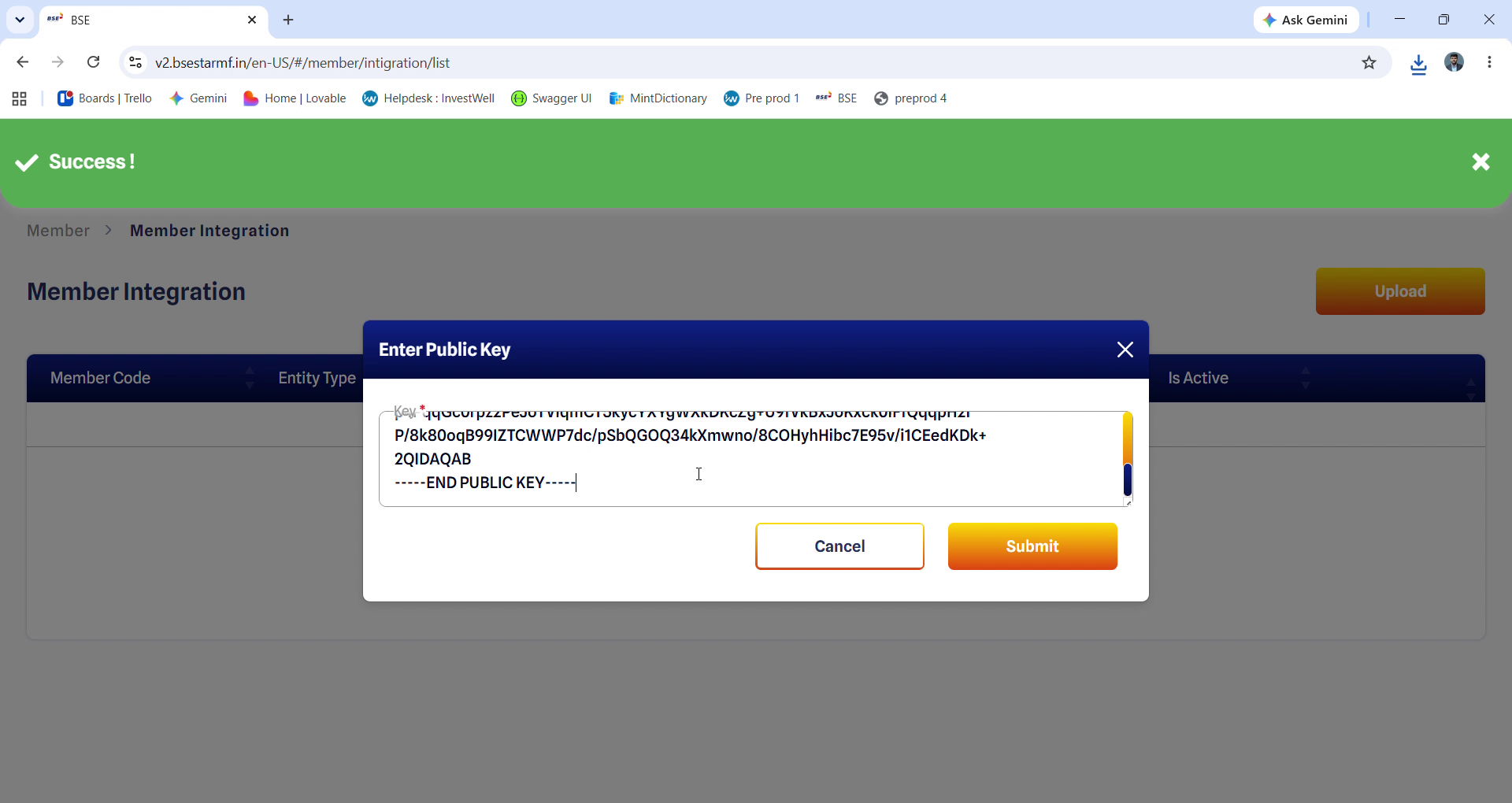
Step 6: Confirm the credentials were added
After submitting, you'll see a success message and a new row in the table showing your Member Code, Entity Type, Created Time, Check-Sum, and Public Key. Download the checksum - you'll need it in the next step.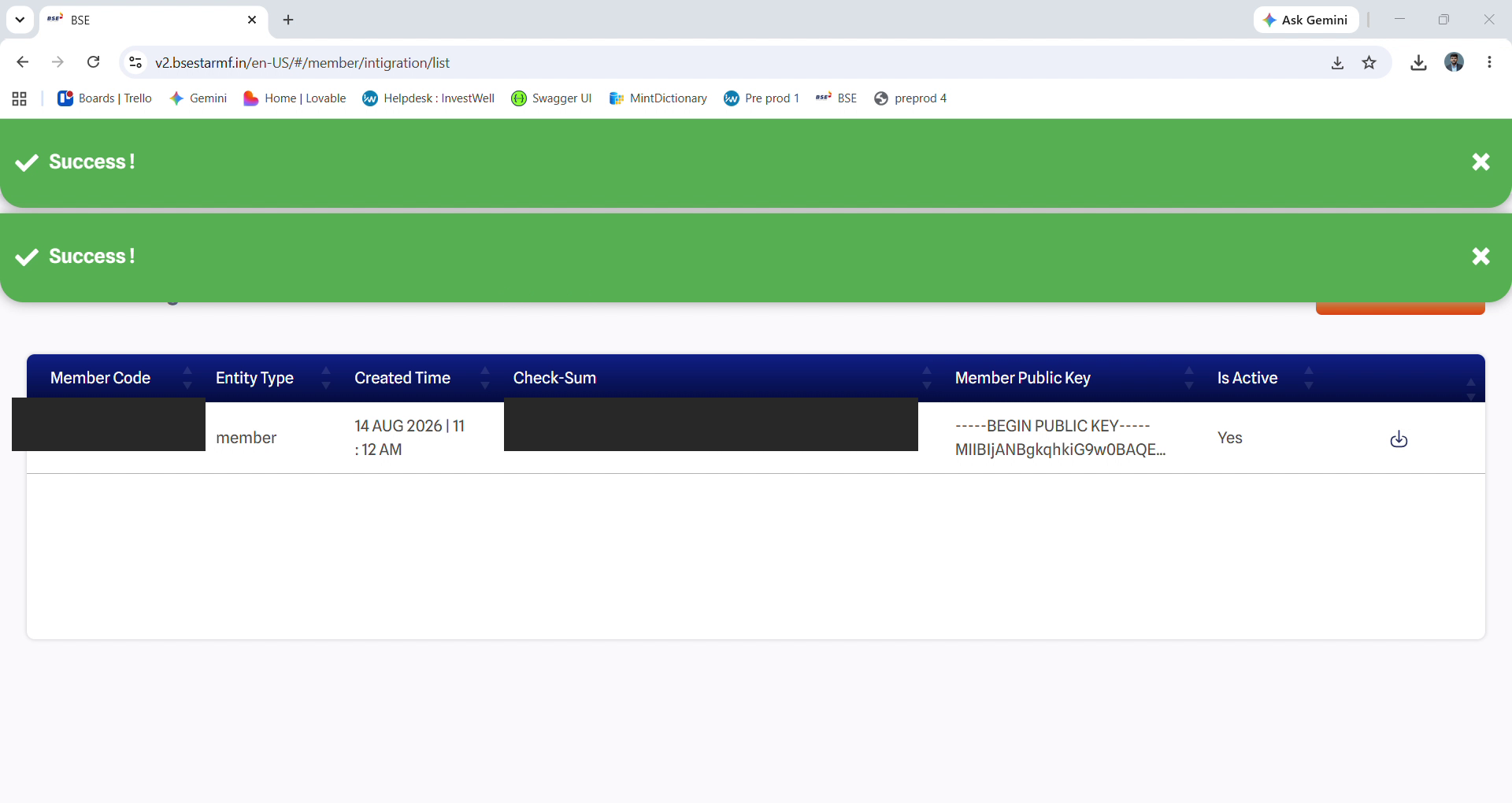
Step 7: Open BSE 2.0 credentials settings on Mint Portal
In Mint, go to settings and click on BSE 2.0 credentials. Under “Your details,” choose your member type (MFD or MFI), confirm your ARN, and enter your Username, Member ID, and Password — the same Member ID used to sign in to BSE StAR MF. Then, under “Upload public key as shared by BSE,” enter the Check-Sum that BSE returned for this member ID. If you're using your own BSE-issued key pair instead of the Investwell-generated one, toggle “Upload your own BSE keypair” on; otherwise leave it set to No. 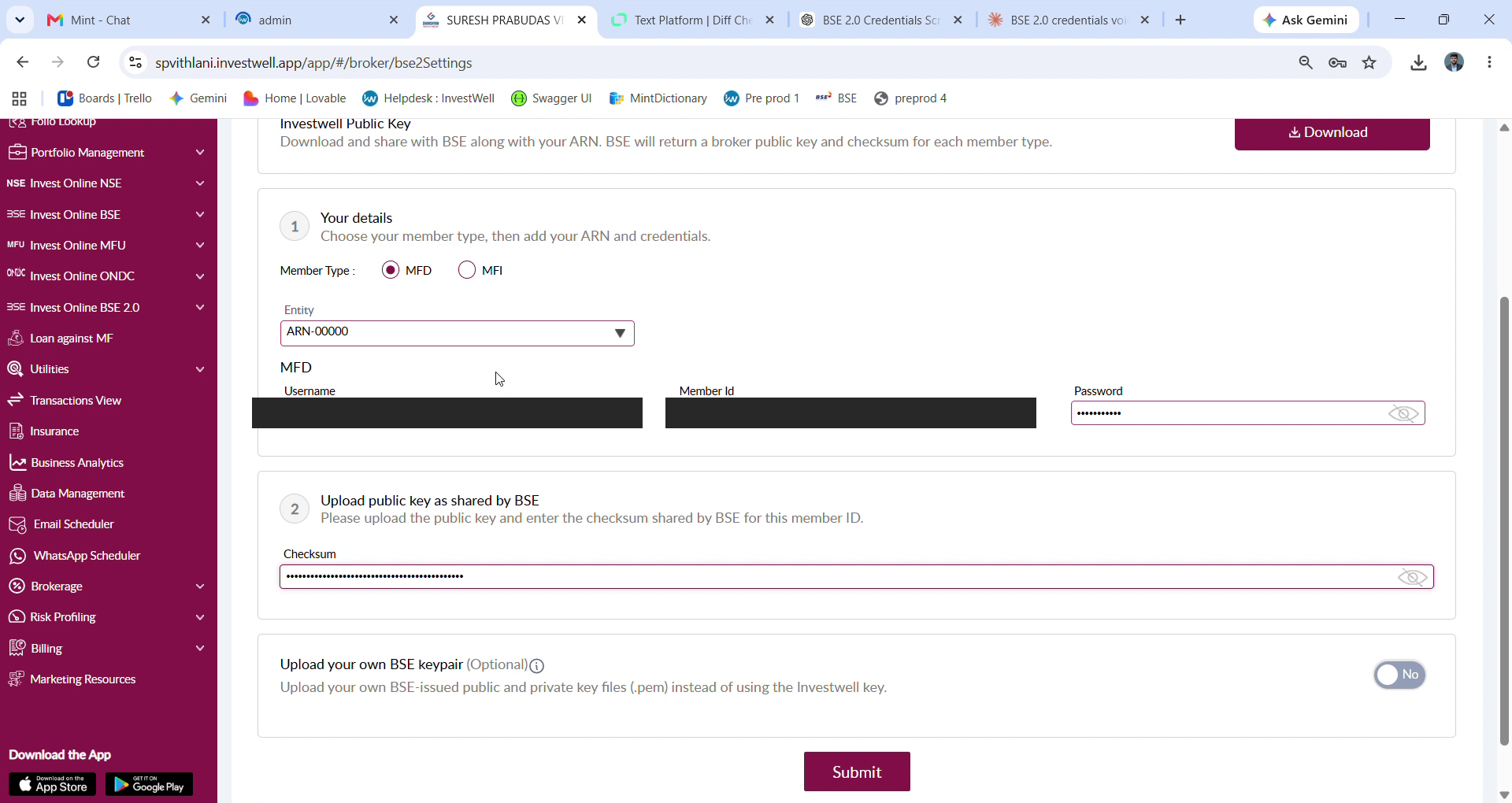
Step 8: Submit
Once every field is filled in, click Submit. This completes the BSE 2.0 integration between your Mint account and BSE StAR MF.
FAQs:
1. Where do I get the Investwell public key?
In Mint, go to Settings > BSE 2.0 Credentials. Under Add Credentials, click Download. Open the downloaded file and copy its contents.
2. How do I upload the public key to BSE?
Sign in to BSE StAR MF 2.0 and select “I am a Member.” Enter your Member Code, User ID, and Password, then enter the OTP. In the left menu, expand Member and select Member Integration. Click Upload, paste the Investwell public key into the Key field, and click Submit.
3. Where do I find the checksum?
After you submit the key on BSE, a success message appears and a new row is added to the table. The row shows your Member Code, Entity Type, Created Time, Check-Sum, and Public Key. Download the checksum, because you need it in Mint.
4. What if the OTP doesn’t arrive?
BSE sends the OTP to your registered email address or mobile number. If it doesn’t arrive, click Resend OTP once the timer runs out.
5. Which details do I enter in Mint’s BSE 2.0 credentials settings?
Under Your details, choose your member type (MFD or MFI), confirm your ARN, and enter your Username, Member ID, and Password. The Member ID must be the same one you used to sign in to BSE StAR MF. Under Upload public key as shared by BSE, enter the checksum that BSE returned for this Member ID.
6. How do I complete the integration?
After every field is filled in, click Submit in Mint. This completes the BSE 2.0 integration between your Mint account and BSE StAR MF.
7. How to migrate from BSE 1.0 to 2.0?
To migrate from BSE 1.0 to BSE 2.0, first raise a request to BSE over email to migrate your member code(s) to BSE 2.0. Once BSE confirms the migration to BSE 2.0, you can follow the steps in this article to migrate clients to BSE 2.0 on Investwell.
8. When will BSE 2.0 start or be available?
It is already available on Investwell. You can follow the integration steps in this article to set up BSE 2.0 for your member codes.
Was this article helpful?
That’s Great!
Thank you for your feedback
Sorry! We couldn't be helpful
Thank you for your feedback
Feedback sent
We appreciate your effort and will try to fix the article