TABLE OF CONTENTS
- INTRODUCTION
- LIST OF PMS currently supported
- Pre - Requisites for syncing the Values
- Process to Sync the Values
- Important Notes
INTRODUCTION
There are some PMS who have introduced 2FA authentication as below on their portals. This documents helps how to sync the values for such PMS
- Captcha - Only Captcha is required to log in post entering credentials.
- OTP - Only OTP is required to log in post entering credentials.
- Captcha and OTP - Both required to log in post entering credentials
- None - Only credentials required to log in
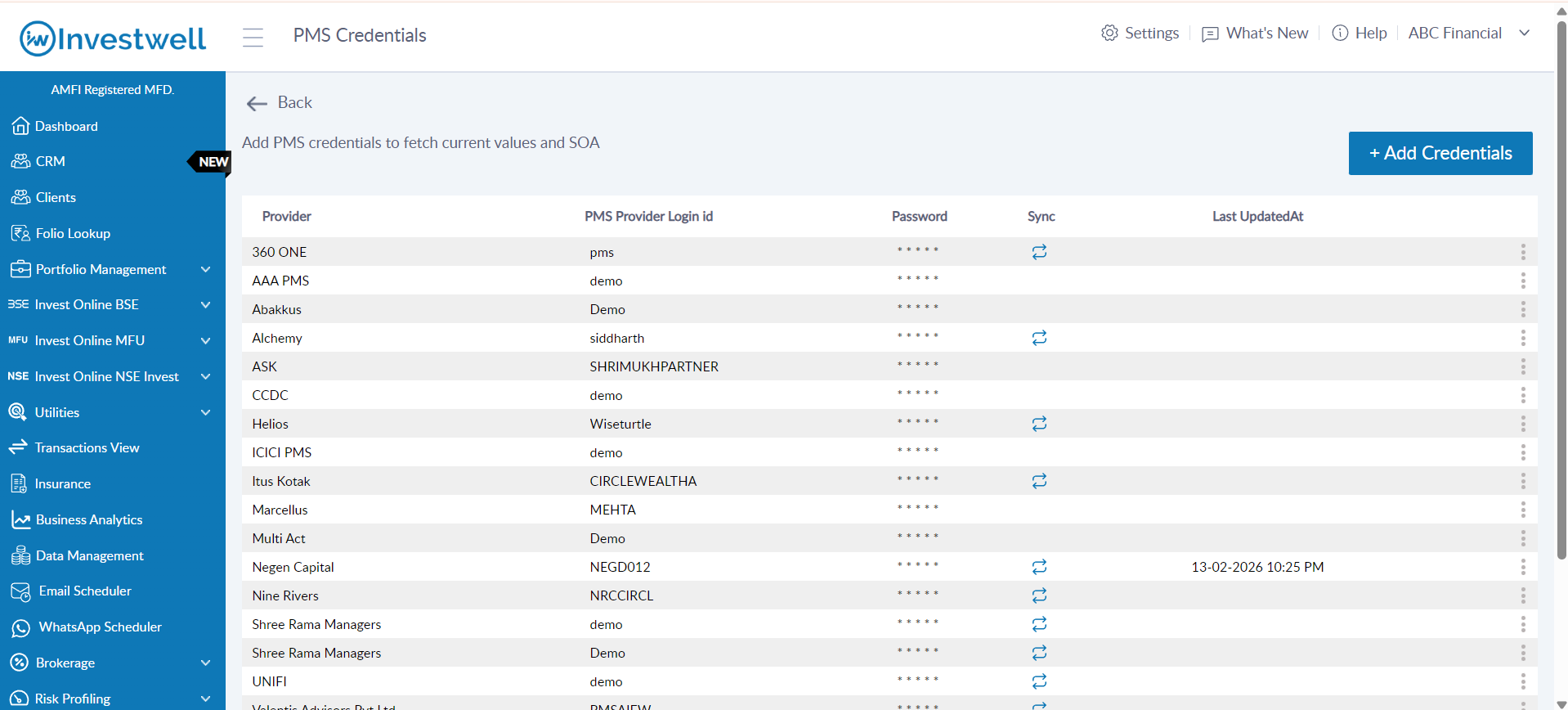
Path: Settings -> PMS Credentials
LIST OF PMS currently supported
Legend
Sync working for
- SOA and current value : Both values get updated post hitting on sync
- Current value only : Only the current value gets updated
Pre - Requisites for syncing the Values
- First Add the credentials of the PMS.
- Path: Settings → PMS Credentials → Add credentials
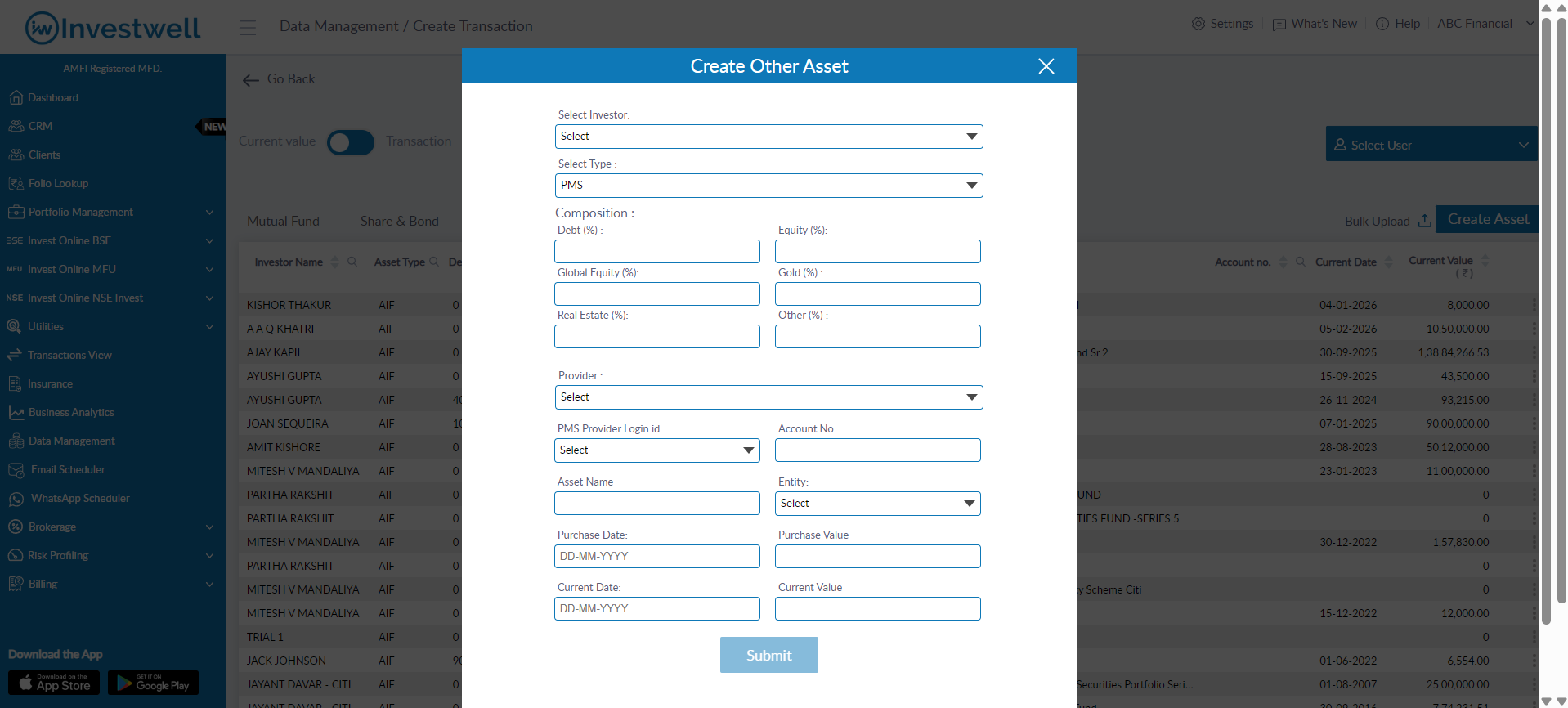
- For the PMS values to sync, the respective account numbers of those PMS's should be added in the system. In case the account number are already present, and the values are not getting updated, please do reverify the account number from the portal. (In some cases the all digit account numbers may be required to sync the values)
- For addition of an account, Path: Left Menu → Data management → Create Transactions → Other Assets → Create Asset
- In case of Motilal Oswal PMS - Please enter the client PAN in place of Account number. This is a special case for PMS where we fetch value based on PAN.
- If the PMS credentials have already been added then the sync button -
 shall be visible automatically
Process to Sync the Values
All types of PMS shall be synced from the Path: Settings → PMS Credentials → Sync
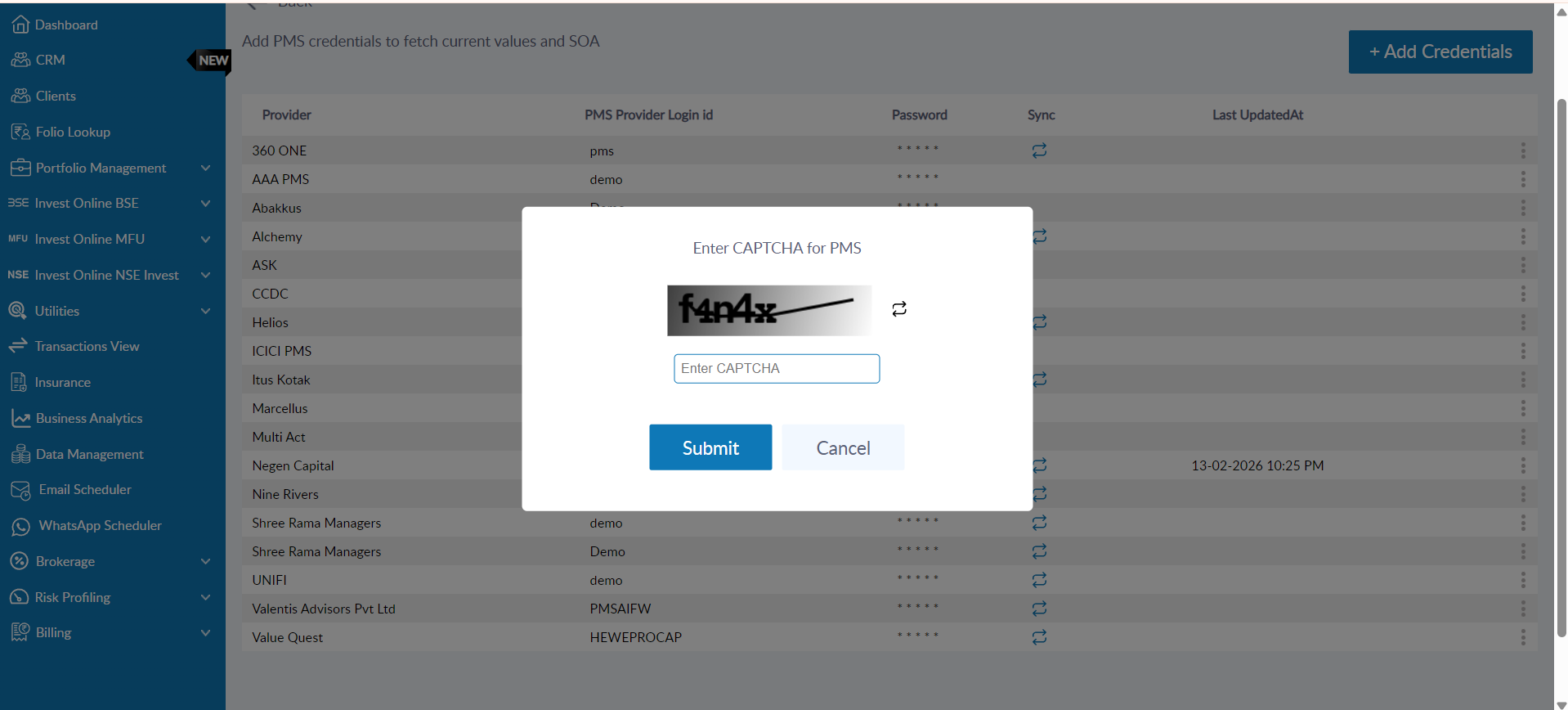
- Captcha - Only Captcha is required to log in post entering credentials.
- For this, the user shall click on the Sync button, post which a pop up shall appear.
- The user will have to enter the captcha on screen and hit submit
- Post this Current values for all added accounts shall get updated along with Current date
- If the user wants to reload the captcha due to accessibility issues, they can before entering the captcha by clicking on the reload button given.
- SOA for such AMCs shall be disabled for the time being. These shall be visible soon!!
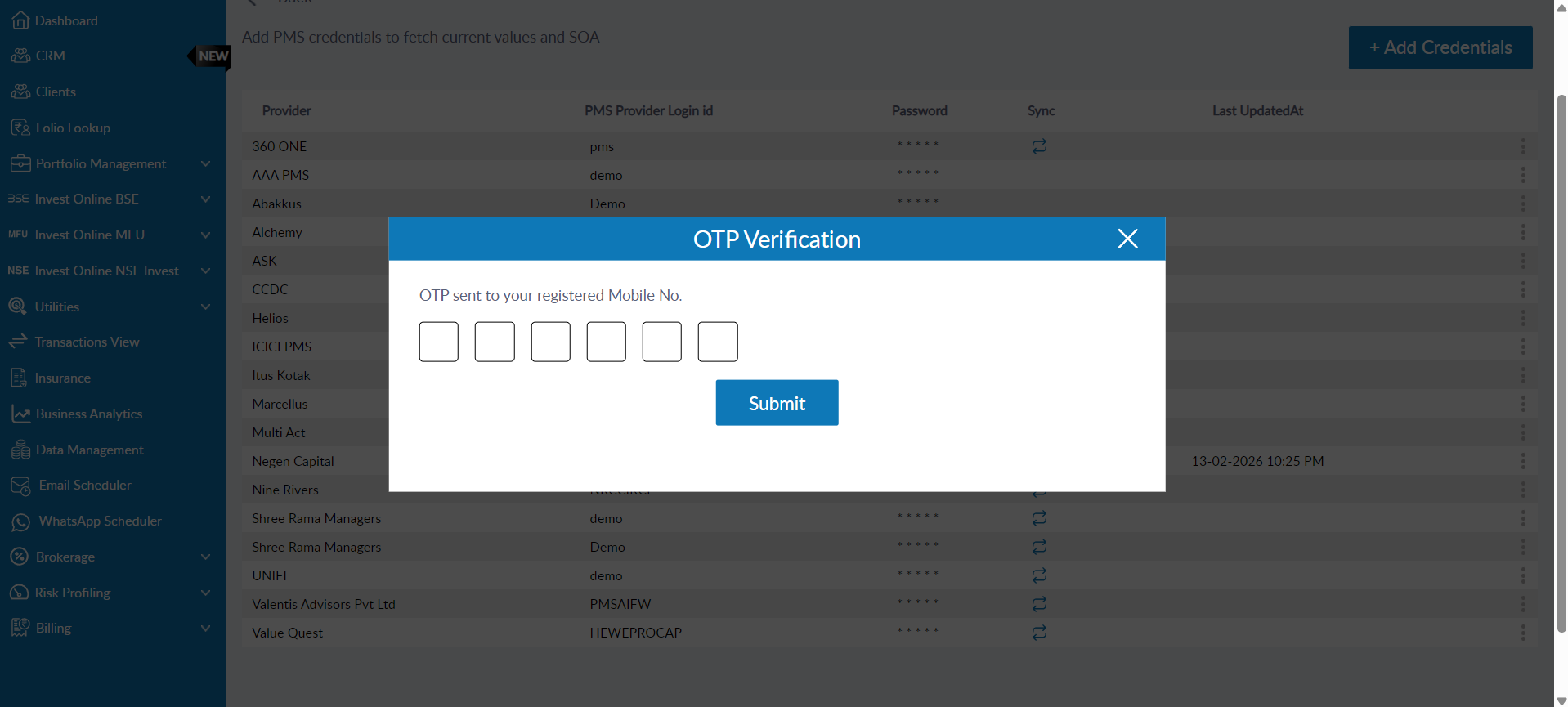
- OTP - Only OTP is required to log in post entering credentials.
- For this, the user shall click on the Sync button, post which a pop up shall appear.
- The user will have to enter the OTP on screen and hit submit.
- Post this Current values for all added accounts shall get updated along with Current date
- SOA for such AMCs shall be disabled for the time being. These shall be visible soon!!
- Captcha and OTP - Both required to log in post entering credentials
- For this, the user shall click on the Sync button, post which a pop up shall appear.
- The user will have to enter the captcha on screen and hit submit
- Post successful Captcha validation, user shall be asked to input OTP
- Post this Current values for all added accounts shall get updated along with Current date
- If the user wants to reload the captcha due to accessibility issues, they can before entering the captcha by clicking on the reload button given.
- SOA for such AMCs shall be disabled for the time being. These shall be visible soon!!
- None - Only credentials required to log in
- No manual sync required. Will be synced as before
Important Notes
- Last updated at field shows the date and time on which the PMS was synced manually
- Account numbers should be correctly added for the sync to work. Please reverify the account numbers before hitting the sync button
- The sync might take some time to update the values (10-20 seconds to reflect the values). Please be patient and do not click on sync again during this period
- SOA option shall soon be supported for all 2FA PMS. For normal PMS, SOA functionality shall work as before
Was this article helpful?
That’s Great!
Thank you for your feedback
Sorry! We couldn't be helpful
Thank you for your feedback
Feedback sent
We appreciate your effort and will try to fix the article