Insurance policies are added from the Insurance module in Investwell, either one at a time with Add Insurance or many at once with Bulk Upload.
Overview
The Insurance module keeps a client's life and general insurance policies in one place. It has two tabs, Life Insurance and General Insurance, and each tab has its own list of policies and its own entry form.
There are two ways to add insurance data:
- Add Insurance: a form to enter one policy at a time.
- Bulk Upload: upload a CSV or XLS file to add many policies together.
Both options are at the top right of the policy list.
Opening the Insurance module
In the left menu, click Insurance. The module opens on the Life Insurance tab. Click General Insurance to switch to general policies.
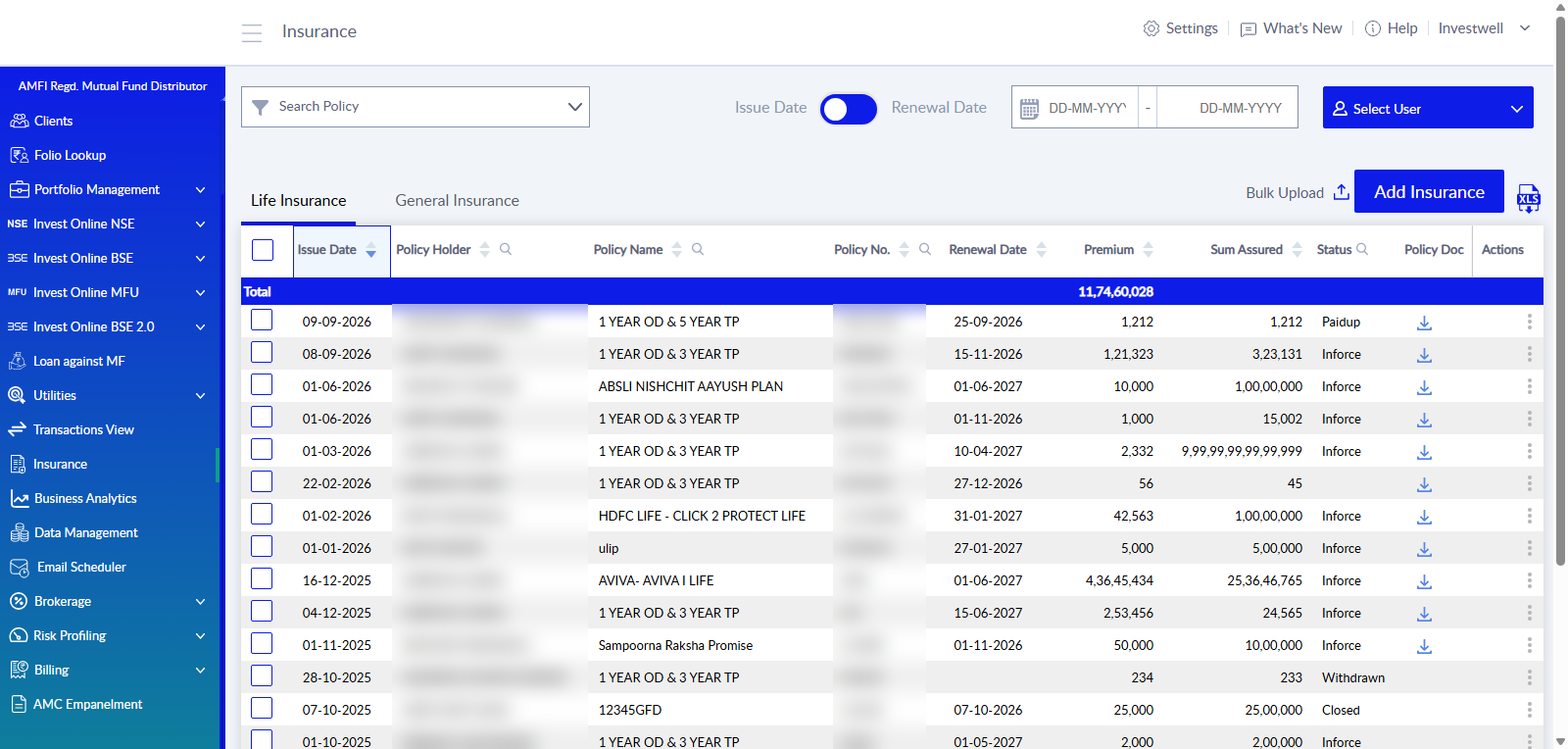
The policy list shows these columns:
Column | Meaning |
Issue Date | Date the policy was issued. |
Policy Holder | The client who holds the policy. |
Policy Name | Name of the plan. |
Policy No. | The policy number. |
Renewal Date | Date the policy is due for renewal. |
Premium | Premium amount. |
Sum Assured | Cover amount (called Sum Insured on the General Insurance tab). |
Status | Policy status, such as Inforce, Paidup, Withdrawn or Closed. General policies show statuses such as Active. |
Policy Doc | Download icon for the attached policy document, where one was attached. |
Actions | The three-dot menu at the end of each row. |
A blue Total row at the top of the list shows the combined total of the listed policies.
Finding policies
- Search Policy: filter the list using the search box at the top left.
- Issue Date / Renewal Date: switch the toggle to choose which date the date range applies to, then enter the range in DD-MM-YYYY format.
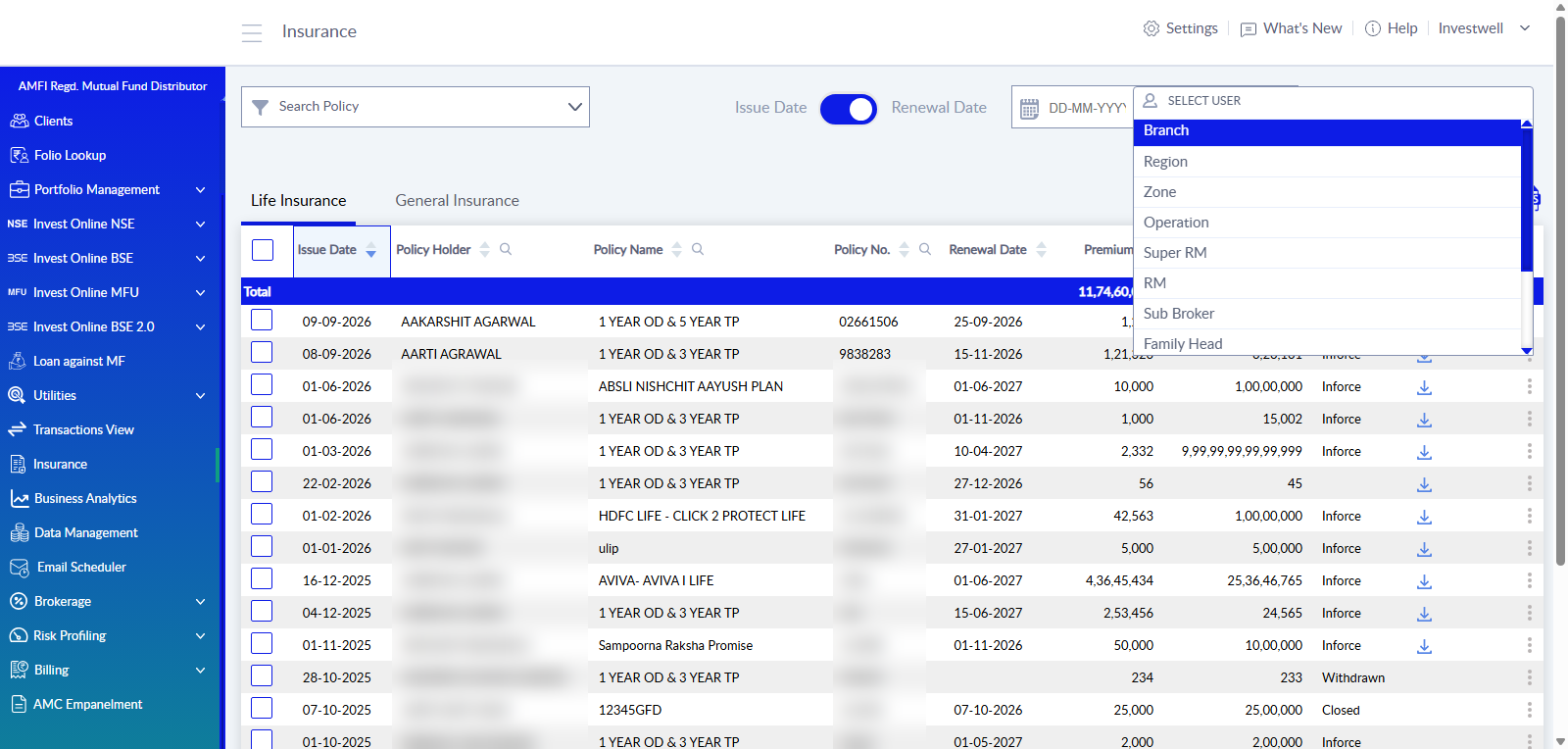
- Select User: show the policies of a particular user group. The options include Branch, Region, Zone, Operation, Super RM, RM, Sub Broker and Family Head.
- XLS button: download the list as an Excel file.
Adding a life insurance policy
- Open Insurance from the left menu and stay on the Life Insurance tab.
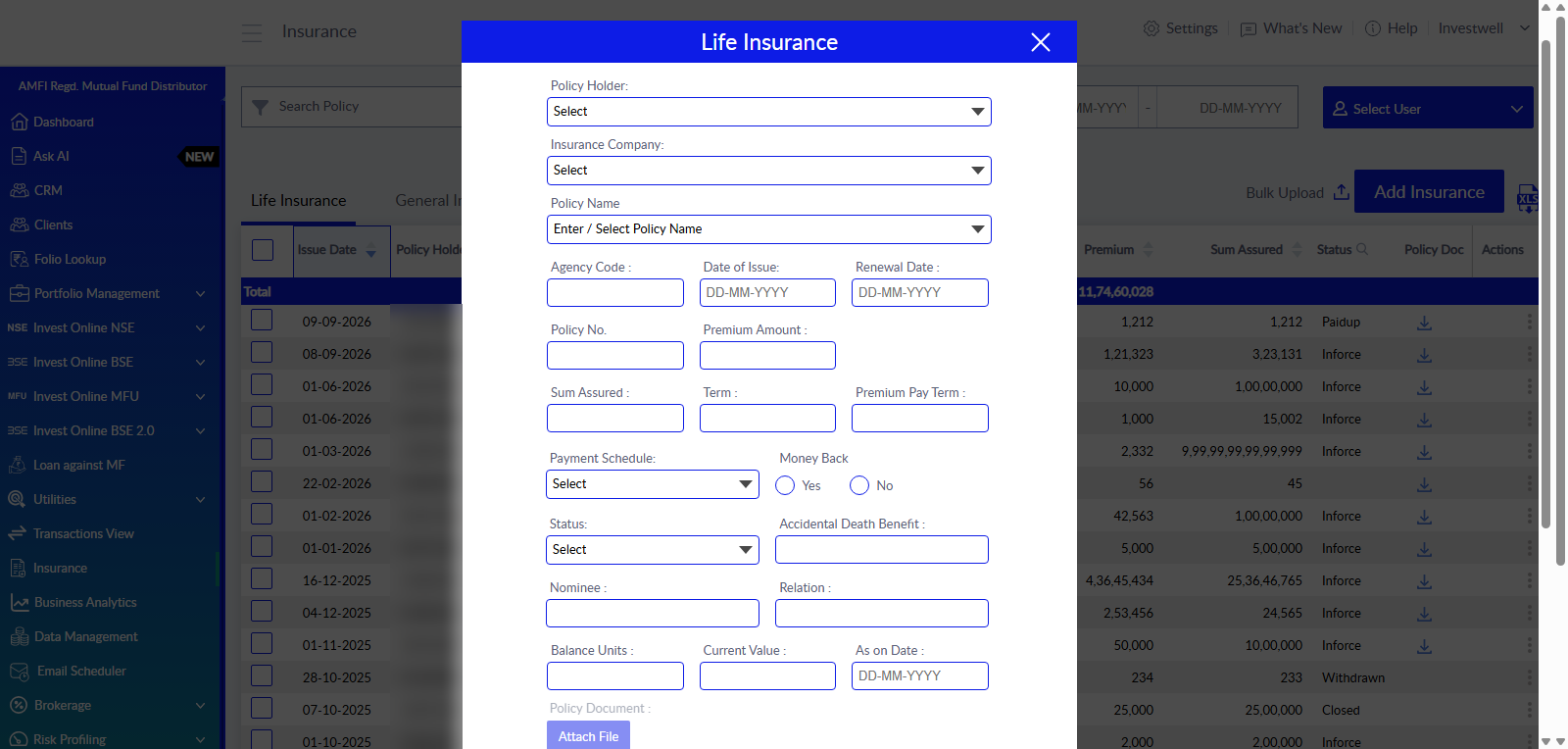
- Click Add Insurance at the top right. The Life Insurance form opens.
- Select the Policy Holder and the Insurance Company, then enter or select the Policy Name.
- Fill in the policy details, such as dates, policy number, premium and sum assured (fields below).
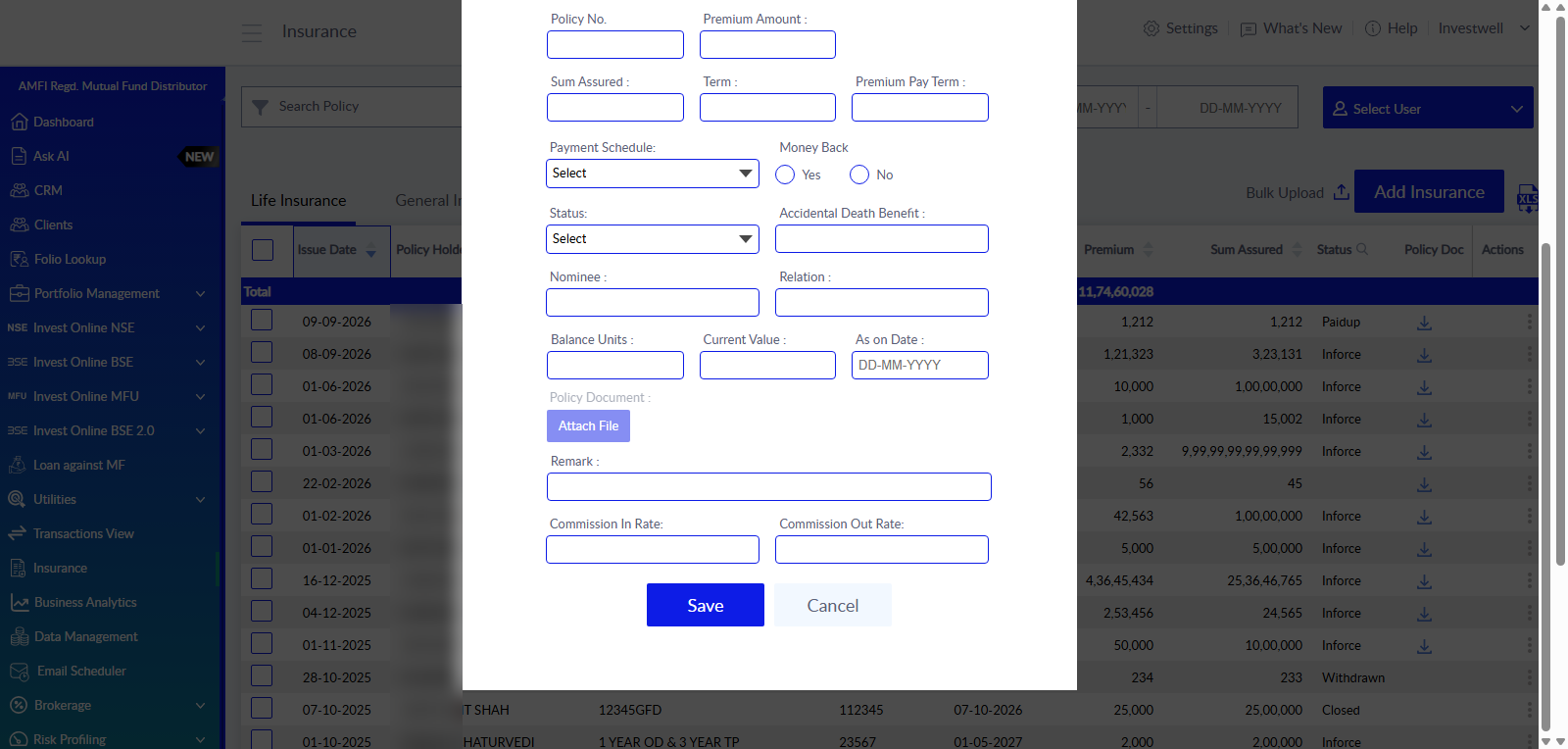
- To keep the policy document with the record, click Attach File under Policy Document.
- Click Save. Cancel closes the form without saving.
Field | Notes |
Policy Holder | Select the client from the list. |
Insurance Company | Select from the list. |
Policy Name | Enter a name or select one from the list. |
Agency Code | Agency code for the policy. |
Date of Issue, Renewal Date | Enter in DD-MM-YYYY format. |
Policy No. | The policy number. |
Premium Amount | Premium for the policy. |
Sum Assured | Cover amount. |
Term, Premium Pay Term | Policy term and premium paying term. |
Payment Schedule | Select how often the premium is paid. |
Money Back | Select Yes or No. |
Status | Select the policy status. |
Accidental Death Benefit | Benefit amount, where applicable. |
Nominee, Relation | Nominee name and relationship. |
Balance Units, Current Value, As on Date | Unit balance and its value on a given date, for unit-linked plans. |
Policy Document | Attach the policy file with Attach File. |
Remark | Free-text note. |
Commission In Rate, Commission Out Rate | Commission rates for the policy. |
Adding a general insurance policy
- Open Insurance from the left menu and click the General Insurance tab.
- Click Add Insurance at the top right. The General Insurance form opens.
- Select the Policy Holder and the Insurance Company, then enter or select the Policy Name.
- Fill in the policy details (fields below).
- To keep the policy document with the record, click Attach File under Policy Document.
- Click Save at the bottom of the form. Cancel closes the form without saving.
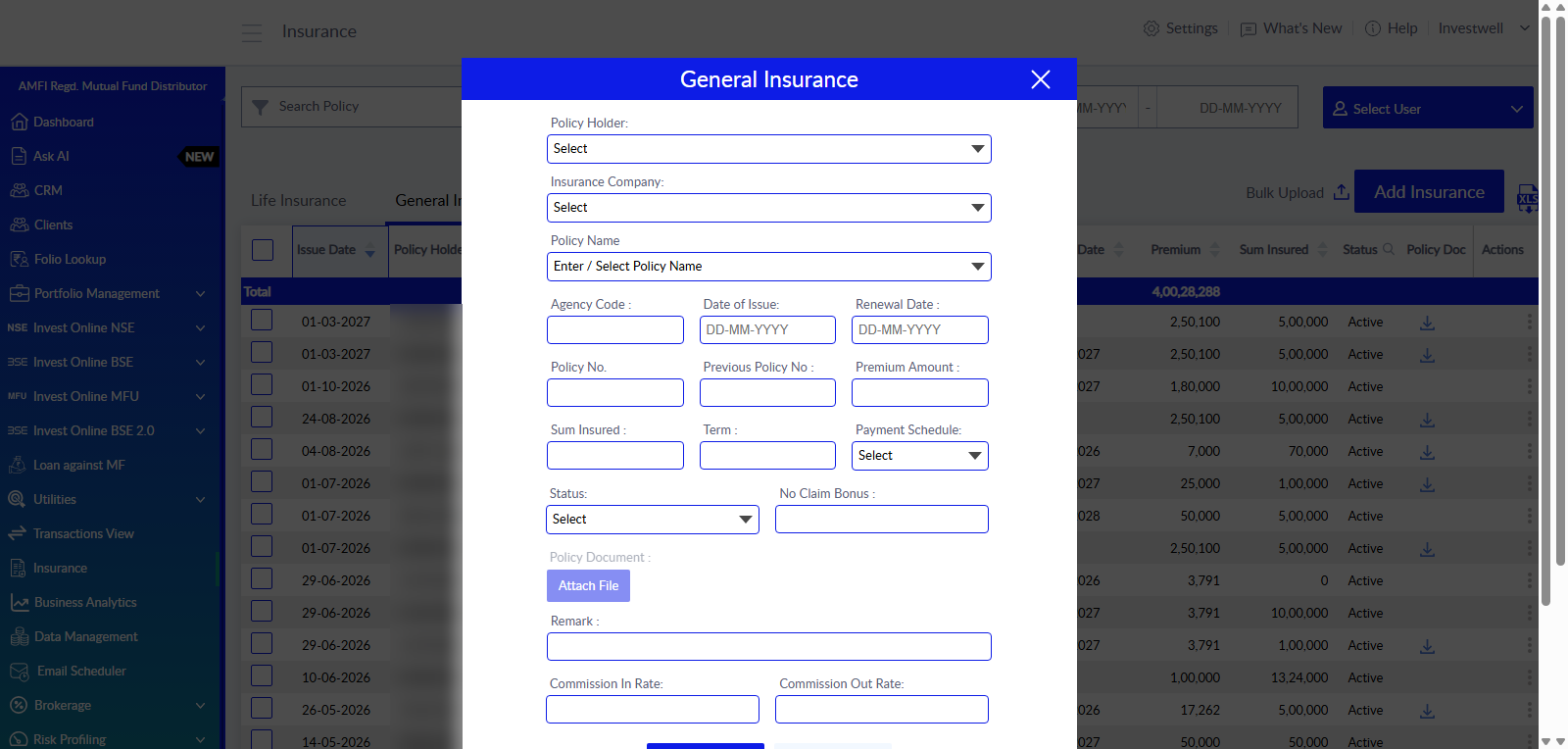
The General Insurance form has the same basic fields as the Life Insurance form: Policy Holder, Insurance Company, Policy Name, Agency Code, Date of Issue, Renewal Date, Policy No., Premium Amount, Term, Payment Schedule, Status, Policy Document, Remark, Commission In Rate and Commission Out Rate. The differences are:
Field | Notes |
Previous Policy No | Number of the policy this one replaces or renews. |
Sum Insured | Cover amount (called Sum Assured for life policies). |
No Claim Bonus | No claim bonus on the policy. |
The life-only fields (Premium Pay Term, Money Back, Accidental Death Benefit, Nominee, Relation, Balance Units, Current Value and As on Date) are not on the General Insurance form.
Adding many policies with Bulk Upload
Bulk Upload adds several policies from one file. It is available on both the Life Insurance and General Insurance tabs. Bulk upload can only be done from the Admin login and not from Relationship manager or Investor login.
- Open Insurance and select the tab (Life Insurance or General Insurance) the policies belong to.
- Click Bulk Upload next to the Add Insurance button. The Insurance Bulk Upload window opens.
- Click Download Sample File to get the file layout, and fill in the policies in that layout.
- Drag the file into the window, or click Choose File and select it.
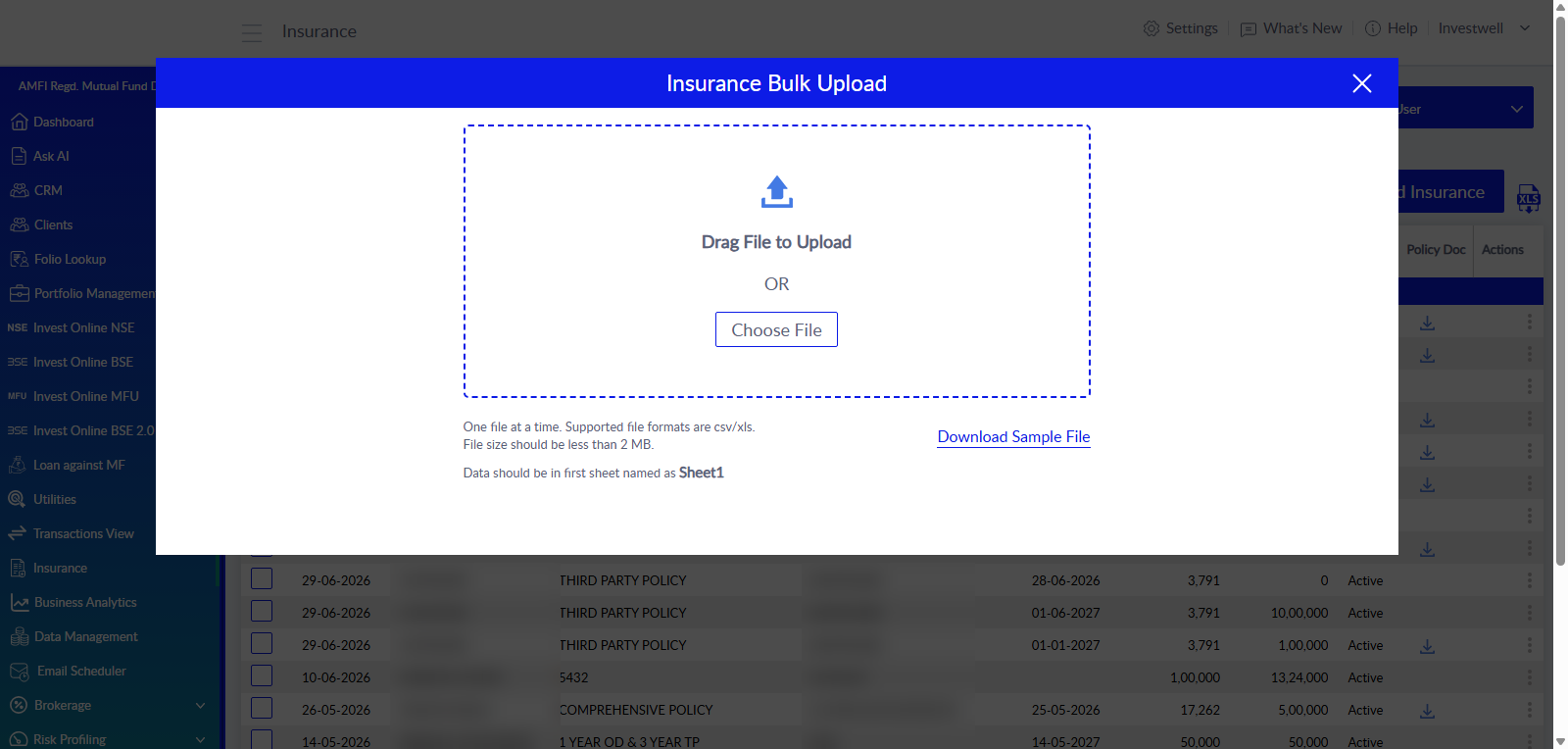
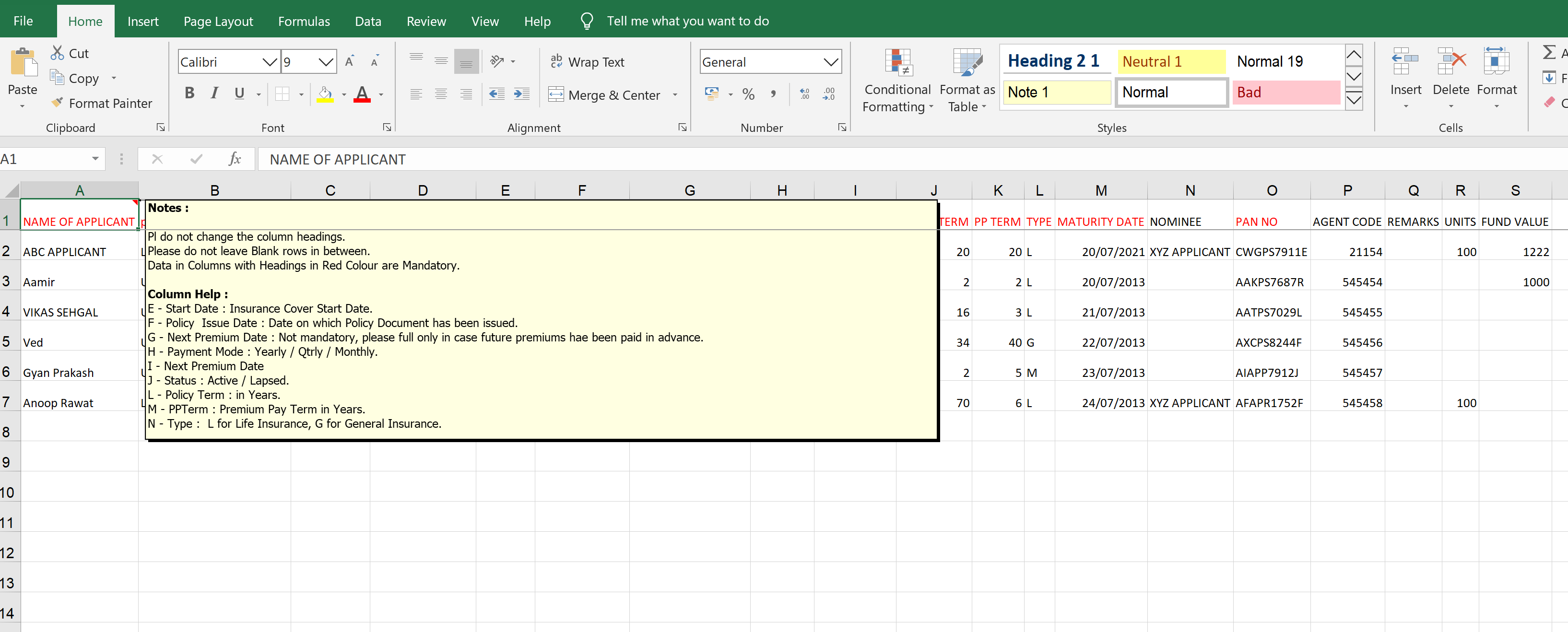
File rules shown in the window:
- One file at a time.
- Supported formats are CSV and XLS.
- File size must be less than 2 MB.
- The data must be in the first sheet, named Sheet1.
Frequently asked questions
1. Where is insurance data added?
In the Insurance module, from the left menu. Use Add Insurance for one policy or Bulk Upload for many.
2. What is the difference between the Life Insurance and General Insurance tabs?
Each tab holds its own policies and has its own form. Life policies include fields such as Premium Pay Term, Money Back, Nominee and Balance Units. General policies include Previous Policy No and No Claim Bonus.
3. How is a single policy added?
Open the correct tab, click Add Insurance, select the Policy Holder and Insurance Company, enter the policy details and click Save.
4. How are many policies added at once?
Click Bulk Upload, download the sample file, fill it in, and upload it as a CSV or XLS file.
5. What are the rules for the bulk upload file?
One file at a time, CSV or XLS format, under 2 MB, with the data in the first sheet named Sheet1.
6. Where can the sample file for bulk upload be found?
In the Insurance Bulk Upload window, under Download Sample File.
7. Can the policy document be stored with the policy?
Yes. Click Attach File under Policy Document in the form. A download icon then appears in the Policy Doc column of the list.
8. The policy was saved but is not visible in the list. What should be checked?
Check that the correct tab (Life or General) is open, and clear the search box, the date range and the Select User filter, which can hide policies.
9. Can the list of policies be downloaded?
Yes. The XLS button at the top right of the list downloads it as an Excel file.
Was this article helpful?
That’s Great!
Thank you for your feedback
Sorry! We couldn't be helpful
Thank you for your feedback
Feedback sent
We appreciate your effort and will try to fix the article